
Consensus LibGuide for Academic Research
Consensus LibGuide for Academic Research
A comprehensive guide to using Consensus, an AI-powered search engine that helps faculty, students, and researchers find peer-reviewed literature, conduct literature reviews, and access evidence-based research with proper citations.
Consensus is an AI-powered search engine and research tool that:
Identifies the most relevant peer-reviewed literature for your query, and
Synthesizes a cited, evidence-based summary of the findings.
Consensus Paper Coverage
Consensus searches over 220 million research papers. These papers come from publicly available datasets like Semantic Scholar and OpenAlex, as well through proprietary partnerships with academic publishers. Consensus has coverage across all academic disciplines and includes articles from nearly all top journals.
Responsible AI Design:
Consensus is built to address the major risks of AI in academic research, particularly hallucinations (when AI fabricates sources or information that don't exist). Unlike general AI tools like ChatGPT, Consensus includes multiple safeguards:
Closed system: Operates exclusively within 220+ million peer-reviewed papers; cannot access unreliable web sources or invent studies
Search-first approach: Functions as a search engine first, finding and ranking real studies, then using AI only to interpret them
Verifiable sources: Every claim links directly to a real paper; click any citation to verify the source exists
Transparent methodology: See exactly which papers were analyzed, their quality indicators, and publication dates
Addresses outdated information: Publication dates visible for every paper; filter for recent research
Finding evidence‐based answers and verifying claims
Conducting or strengthening a literature review
Exploring new or unfamiliar topics quickly
Identifying key papers, authors, and influential research
Finding support for arguments and spotting research gaps
Finding evidence‐based answers and verifying claims
Grant or scientific writing
Go to www.consensus.app and sign up with your university email address
There are three search modes, depending on how detailed you want the results to be:
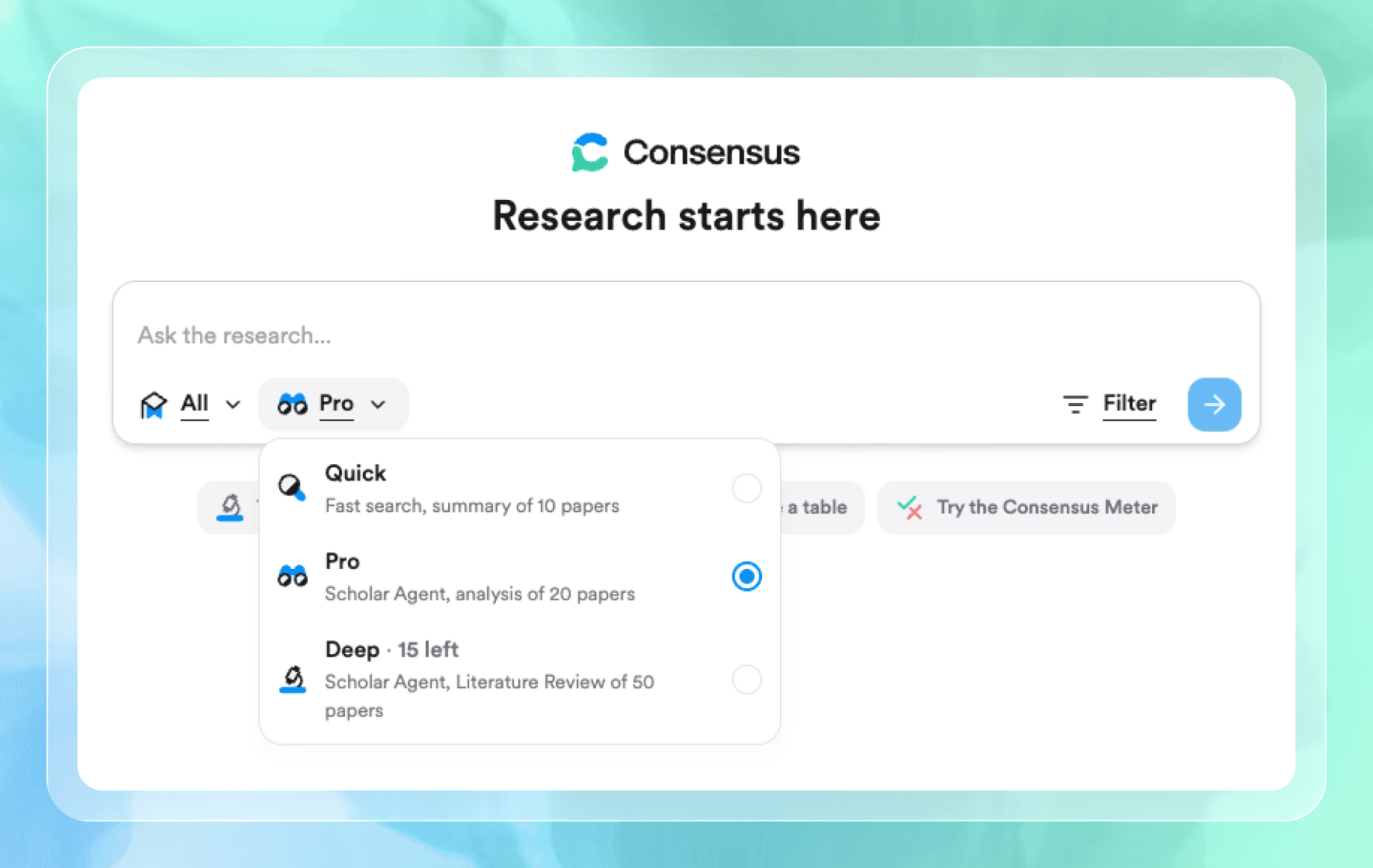


Consensus is flexible and adapts to different search styles. You can search using natural language questions, commands, keywords, Boolean operators, paper titles, and more.
Natural Language Questions & Commands:
Keyword & Phrase Searches:
Use keywords or phrases:
Search exact paper titles in quotes:
Search by researcher name to find their published work:
Use MeSH (Medical Subject Headings) terms for medical searches:
Boolean Operators
Refine searches with Boolean logic for more control:
AND
Include all terms:
OR
Include either term:
NOT
Exclude terms:
"Quotes"
Exact phrase:
(Parentheses)
Group terms
When to Use Each Search Method
Tips for Better Results
Be specific: "smartphone addiction in adolescents" not "phone use"
Focus your queries to topics likely covered in academic research papers
Include key terms and relationships you're investigating
Use MeSH terms for medical topics to improve accuracy

When you run a search, especially with Pro mode, you'll see a comprehensive analysis at the top of your results page:

Key Components:
TL;DR Header
Quick takeaway before diving into details
In-line Citations
Citation numbers link directly to the supporting research papers
✓ (checkmark) in citation = full text was analyzed
No checkmark = abstract was analyzed
Click any citation to view paper details or to go directly to the paper
Visualizations
To make research more engaging and accessible, Consensus automatically fires different visualizations based on your query type. These visual aids are particularly helpful for neurodivergent learners and those who process information visually
Consensus Meter: Distribution of findings for yes/no questions
Claims & Evidence Tables: Key claims with supporting evidence for complex topics
Research Gaps Heat Maps: Identifies understudied areas
Results Timeline: Publication patterns over time for broad topic searches
*Note: Visualizations do not appear for every search. Consensus automatically selects the most relevant visualizations based on your query type and the available research. You'll see a results timeline when you search for keywords, ask about how something has evolved over time, or run a deep search.
Action buttons
Export button: Click to copy text, copy with citations, or export as PDF *Example of an exported PDF
Filter button (three dashes, next to Export): Click to refine your paper results with advanced filters
Suggested Follow-Up Questions
Clickable prompts that help you explore related topics or dive deeper into specific aspects.
Below the Pro Analysis, individual papers are displayed as numbered entries:

Customize Your Results View
Switch between three display options using the view buttons at the top right of your results:
Default: Full details with key takeaways
Compact: Same as Default without key takeaways (faster scanning)
Table: Compare papers side-by-side with study attributes
Switch between three display options using the view buttons at the top right of your results:
Paper title and authors — The original research study
AI-extracted key finding — A one-sentence summary of the main conclusion
Study details — Publication year, journal, sample size, and study type
Citation information — For proper referencing
Click any entry to open the paper details panel on the right, where you can access the abstract, PDF, and full paper information:


Consensus has both paywalled articles and Open Access articles within our corpus. Every article will have a direct link to get to the underlying source. These links will say one of two things, indicating if the source is a paywalled article, or is Open Access:
If the link says "PDF", the paper is Open Access and this link will take you directly to the full text
If the link says "Full Text" the paper is paywalled and this link will take you directly to publishers website to access the paper with your credentials
If you are a part of an institution that subscribes to LibKey, you can enable the LibKey integration by going to your Consensus Settings page and selecting your institution. When the integration is enabled, all paywalled papers will take you directly to a university page to access the paper.

7.1 Consensus Meter: Visual distribution of papers that support, contradict, or show mixed/conditional results
7.2 Citations: One‑click formatted citations and guidance to ensure proper attribution
7.3 Search Filters: Narrow by date, study type, access, citations, sample size, domain, and more
7.4 Threads: Use for follow‑up questions and iterative research within the same search context
7.5 Lists: Save papers and threads to custom lists for organizing different projects or topics
7.6 Reference Manager Integrations: Export .RIS/.CSV or use connectors for Zotero, EndNote, Mendeley, RefWorks, Citavi, and Papers
For yes/no questions, Consensus displays a visual meter showing the distribution of research findings:

Yes (Green)
Studies that clearly support the claim
Possibly (Yellow)
Studies with partial, conditional, or weak support
Mixed (Orange)
Studies that found both supporting and contrasting evidence
No (Red)
Studies that clearly contradict the claim
Click the table icon at the bottom right of the Meter to view the Consensus Snapshot, which provides additional context for each position:
Summary of findings: Brief overview of what each position shows
Recency: Average publication date of papers in each position
Methods: Count of high-quality study types (Meta‑Analyses, Systematic Reviews, RCTs) in each position
Journals: Average journal quality (SJR score) for papers in each position
Citations: Total citations across papers in each position
A
Generate properly formatted citations:
Find a paper you want to cite in your search results
Click the quotation mark ("") button on the paper
Select your citation style (APA, MLA, Chicago, Harvard, BibTeX, or AMA)
Click "Copy Text" to copy the citation to your clipboard

B
Export papers to Reference Managers
You can export papers to reference managers like Zotero, Mendeley, or EndNote. Simply click the download button and choose .RIS or .CSV format, then import the file into your reference manager.
Apply filters before or after your search to refine results. Click the Filter button (three horizontal dashes) to access filters.

Use this quick guide for some of our most popular filters:
Filter
When to use
Journal Rank
Prioritize high-impact publications when quality and reliability are critical (Q1 = highest quality journals)
Countries
Find research from specific regions or focus on studies with human participants
Publish Year
Focus on the most current research or track how findings have evolved over time
Methodology
Identify the strongest evidence (meta-analyses, RCTs) or match study design to your research needs
Sample Size
Filter for studies with larger participant numbers to ensure more reliable and generalizable findings
Study Durations
Find long-term studies to understand sustained effects or short-term studies for immediate outcomes
Fields of Study
Narrow results to your specific discipline or explore interdisciplinary perspectives
Citations
Find influential, well-established papers that have shaped the field
Threads lets you ask follow-up questions within the same search, creating a continuous conversation with the research:

How to Use Threads:
Run your initial search
Click "Ask a follow up..." at the bottom of the page
Enter your next question (e.g., "What about in older adults?" or "What are the mechanisms?")
Continue building on your research without starting over
OPTIONAL
Select Specific Papers or Upload Papers:
There are two ways to direct your follow-up questions to specific papers:

Select papers from search results: Check the boxes next to papers (up to 5) before asking your question
Upload your own papers: Click the dropdown menu on the left side of the search bar to upload PDFs or select from previously uploaded papers
If you don't select or upload papers, the agent will intelligently reason whether to search new papers or analyze existing results.
Managing Threads:
Start new Thread: Click + symbol (top left of panel) or use Ctrl+K (Windows) / Command+K (Mac)
Share Thread: Click 🔗 Share button → Set to Public → Copy link or share to X
Save searches and papers to custom lists for easy access and organization:

How to Save:
Click bookmark button on any paper or thread → Select or create list
Access lists: Click Research Hub (folder icon, left sidebar) → Lists tab
Organization Tips:
Create lists for different projects or paper sections
Use "My Favorites" for quick access to important papers
Save entire search threads to revisit your research path
Export papers to your reference manager:
Click the download button on a paper → choose .RIS or .CSV → import to Zotero, EndNote, Mendeley, RefWorks, Citavi, or Papers
Or use available connectors where supported
" transform="translate(2.811 2.125)" width="8.564379376028993px"/><path d="M 0 0 C 1.597 1.295 3.189 2.568 4.677 3.97 C 5.68 4.914 6.581 5.989 7.773 6.767" fill="transparent" height="6.767493964209203px" id="MqtnopVt2" stroke-dasharray="" stroke-linecap="round" stroke-linejoin="miter" stroke-miterlimit="10" stroke-width="2.71" stroke="rgb(253, 102, 107)" transform="translate(1.625 5.108)" width="7.773379254280158px"/></svg>)
Never:
Copy Pro Analysis or AI-generated summaries directly into your papers
Cite papers you haven't at least reviewed the abstract for
Claim to have read papers when you've only seen AI summaries
Use AI summaries as a substitute for critical thinking and analysis
Always:
Click on citations in Pro Analysis to verify the source
Write findings in your own words
Start Broad: Begin with general questions to understand the research landscape
Then Narrow: Use filters and more specific searches to focus on exactly what you need
Not getting the results you want? Rephrase: Try synonyms and different question formats
Follow Citation Trails: Check reference lists in relevant papers to discover foundational research and understand how knowledge has developed
Confirmation Bias: Actively seek papers with different perspectives, not just those that support your viewpoint
Relying Only on AI Summaries: Always read at least the abstract for important papers; read full text for papers you cite
Ignoring Publication Dates: Check for recent papers; note when findings have changed over time
Not Checking Sample Sizes: Small studies may not be generalizable
Treating All Papers Equally: Evaluate quality; prioritize meta-analyses and well-designed studies
Your campus library offers research assistance:
Visit the reference desk for quick questions
Schedule a research consultation with a subject librarian
Attend library workshops on research strategies
Use the library's LibGuides for discipline-specific resources

Become a Consensus MCP expert.
For courses and more information on how to use the MCP, check out our guide below.